


 Monitoring
Monitoring Environment
NetEye builds around Icinga, a monitoring system which checks the availability of your network resources, notifies users of outages, and generates performance data for reporting.
Icinga 2 is the monitoring server and relies on Icinga Web 2.
The monitoring environment is organized according to Roles and Zones. A distributed monitoring environment includes high-availability clustering and setup details for Icinga masters, satellites and agents. Check out official Icinga 2 documentation for details.
Hosts and Services
With the NetEye.Cloud Monitoring service you can monitor the availability of hosts and services. Hosts and services can be virtually anything which can be checked in some way, e,g, Network services (HTTP, SMTP, SNMP, SSH, etc.), printers, switches or routers, temperature sensors and other local or network-accessible services.
Host objects provide a mechanism to group services that are running on the same physical device.
Host and Service states help to indicate if an object is available, working properly or experiencing any issues. A full range of states is available in the official Icinga2 documentation.
Hosts and services determine their state by running checks in a regular interval, some of them are built-in, e.g. hostalive. Check out a full list of check commands in the official documentation.
Monitoring Status
As the check commands run, you will be able to check out Monitoring status of the objects.
The monitoring Overview is presented in monitoring panels, allowing you to check out the status or have a closer look at all the details of the check result.
You can sort the results by Host or Services, or even see the aggregated stats for the host or service groups, and even check comments or the status of a scheduled downtime.
The Monitoring panels in NetEye are divided into several sections, each carrying different information.
Plugin Output
Performance Graph
Notifications
Check execution
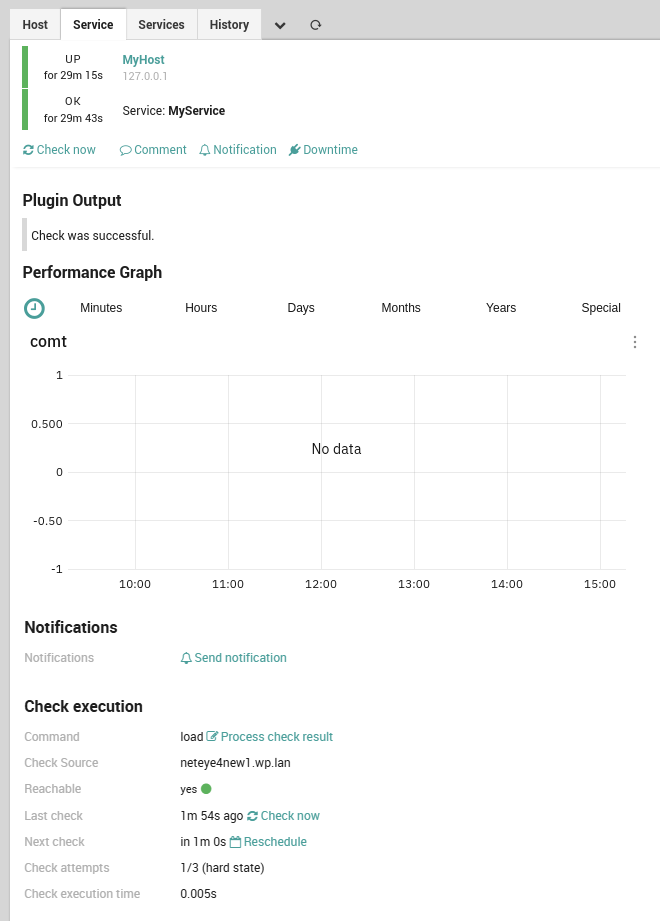
Fig. 209 The Monitoring status.
When finding your hosts in the Overview, choosing a specific host would open services view of the host, allowing to see all the services with status associated with it.

