


 Monitoring
Business Service Monitoring
Business Service Monitoring is available as part of the NetEye’s cloud-based monitoring solution, giving your organization a business-oriented view of IT infrastructure and its impact on services.
Business Service Monitoring links technical monitoring data directly to business outcomes, allowing you to track the health and performance of your critical processes in real time. It allows you to drill down from high-level services such as email or ERP to progressively lower-level services such as database servers and routers. This can help you to prioritize which devices should be repaired first in the event of an emergency, as well as explore recovery strategies with hypothetical incidents.
With Business Service Monitoring in the NetEye.Cloud, you are able to:
Visualize parts of your IT infrastructure in a clear hierarchical view;
Understand the business impact of individual services;
Assess potential impact scenarios, such as:
What happens if a specific server is powered down?
Would critical services be affected?
Which applications would be impacted?
View process-based dashboards that provide a business-level perspective;
Receive notifications triggered at the process or sub-process level;
Gain a quick, top-level overview of thousands of components on a single screen;
This fully-managed service ensures you benefit from powerful monitoring insights while the operations team takes care of all configuration and updates.
In the NetEye.Cloud, Business Service Monitoring is delivered as an empty container service. Unlike the on-premises installation, you will not need to create or configure business processes themselves. Instead:
The information and details about required business processes are to be provided during onboarding.
Operations team sets up and configures those processes for you.
Once live, you can track and monitor your business services through dashboards, reports, and notifications.
If you need to introduce new processes or adjust existing ones, you may request changes.
Business Process Logic
A Business Process is a high-level logical service that groups together multiple monitored objects (and, in some cases, smaller business processes) that are interrelated through logical operations. In the cloud service, these monitored objects are Icinga objects, that stay inside the monitoring perimeter defined during the onboarding phase.
The overall state of a business process is determined by applying the status of each monitored object to the process’s logical expression. By treating a business process itself as a monitored object, it becomes possible to calculate its availability, design more complex monitoring logic, and build Grafana dashboards that visualize service health in a business-oriented way.
Business Process View
With the Business Service Monitoring you can access a quick top-level view for thousands of components on a single screen.
By default all nodes are ordered alphabetically while viewing them in the UI. Though, it is also possible to order nodes entirely manually upon request.
The hierarchy of a derivative Business Processes structure is expressed with the help of the breadcrumbs. A breadcrumb component always gives you a quick indication of your current location.
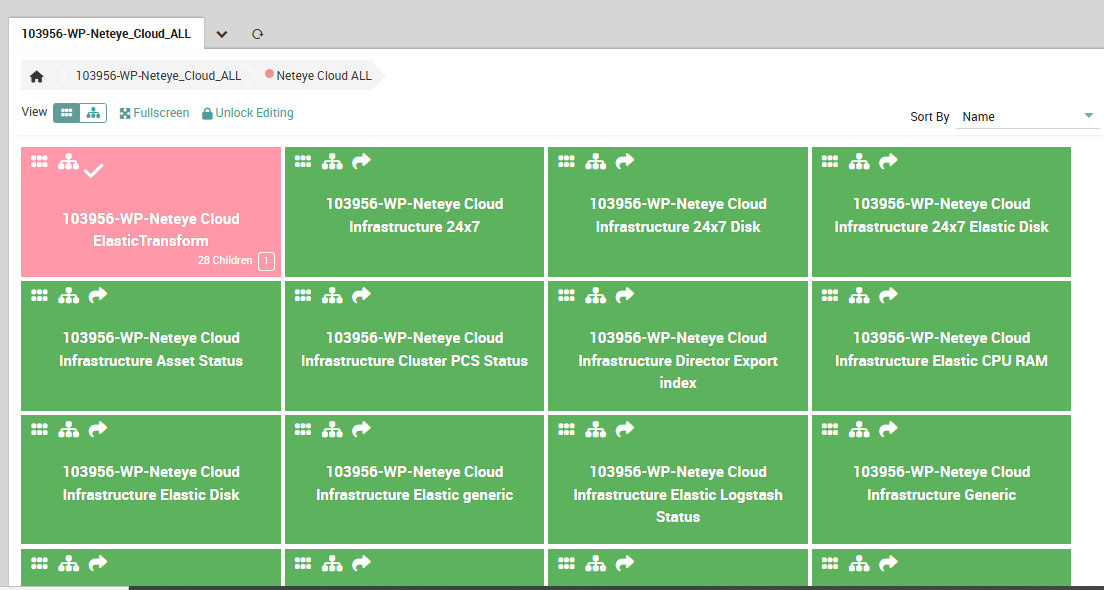
Fig. 210 The Business Process nodes distribution.
The left-most section shows the title of the current Business Process Configuration. The remaining sections show the path to the current Business Process Node currently being shown.
Hovering the Breadcrumb with your mouse shows you that all of it sections are highlighted, as they are links pointing to either the root level when clicking on the Configuration Node itself or to the corresponding Business Process Node. All but the last section, showing your current position in the tree. Even if not being highlighted, it is still a link an can be clicked in case you need so.
Actions below the Breadcrumb
Choose a renderer: The first link allows to toggle the used Renderer. Currently a Tree and a Tile renderer are available.
Move to Full Screen Mode: Every view can be shown in Full Screen Mode. Full screen means that left and upper menu together with some other details are hidden. Your Business Process will be able to use all of the available space.

