User Guide Functional Overview Requirements Architecture System Installation NetEye Additional Components Installation Setup The neteye Command Director NetEye Self Monitoring Tornado Business Service Monitoring IT Operation Analytics - Telemetry Geo Maps NagVis Audit Log Shutdown Manager Reporting ntopng Visual Monitoring with Alyvix Elastic Stack IT Operations (Command Orchestrator) Asset Management Service Level Management Cyber Threat Intelligence - SATAYO NetEye.Cloud Strategy Monitoring SOC System Administrator SOC Attacker Centric NetEye Update & Upgrade Backup and Restore How To NetEye Extension Packs Troubleshooting Security Policy Glossary
module icon SOC System Administrator
SOC System Administrator (AdS) Access to NetEye and Elastic Elastic Dashboards Elastic Discover Elastic Alerts Elastic Rules
NetEye.Cloud Strategy Monitoring SOC System Administrator SOC Attacker Centric Introduction to NetEye Monitoring Business Service Monitoring IT Operation Analytics Visualization Network Visibility Log Management & Security Orchestrated Datacenter Shutdown Application Performance Monitoring User Experience Service Management Service Level Management & Reporting Requirements for a Node Cluster Requirements and Best Practices NetEye Satellite Requirements TCP and UDP Ports Requirements Additional Software Installation Introduction Single Node Cluster NetEye Master Master-Satellite Architecture Underlying Operating System Acquiring NetEye ISO Image Installing ISO Image Single Nodes and Satellites Cluster Nodes Configuration of Tenants Satellite Nodes Only Nodes behind a Proxy Additional NetEye Components Single Node Cluster Node Satellites Nodes only Verify if a module is running correctly Accessing the New Module Cluster Satellite Security Backup and Restore Identity and Access Management External Identity Providers Configure federated LDAP/AD Emergency Reset of Keycloak Configuration Advanced Configuration Roles Single Page Application in NetEye Module Permissions and Single Sign On Within NetEye Importing User Federation Groups inside another Group Importing OIDC IdP Groups inside another Group Resources Tuning Advanced Topics Basic Concepts & Usage Advanced Topics Monitoring Environment Templates Monitored Objects Import Monitored Objects Data Fields Deployment Icinga 2 Agents Configuration Baskets Dashboard Monitoring Status Icinga2 Features VMD Permissions Notifications Jobs API Configuring Icinga Monitoring Retention Policy NetEye Self Monitoring Concepts Collecting Events Add a Filter Node WHERE Conditions Iterating over Event fields Retrieving Payload of an Event Extract Variables Create a Rule Tornado Actions Test your Configuration Export and Import Configuration Example Under the hood Development Retry Strategy Configuration Thread Pool Configuration API Reference Configure a new Business Process Create your first Business Process Node Importing Processes Operators The ITOA Module Configuring User Permissions Telegraf Metrics in NetEye Telegraf Configuration Telegraf on Monitored Hosts Visualizing Dashboards Customizing Performance Graph The NetEye Geo Map Visualizer Map Viewer Configuring Geo Maps NagVis Audit Log Overview Shutdown Manager user Shutdown Manager GUI Shutdown Commands Advanced Topics Overview User Role Management Cube Use Cases ntopng and NetEye Integration Permissions Retention Advanced Topics Overview User Roles Nodes RDP Client Building Tools Editor: Interface Overview Editor: Script Building Editor: Managing Scripts Designer: Interface Overview Designer: Interface Options Designer: Component Tree Selector: Interface Overview Test Case Management Dashboard Use Cases Overview Architecture Authorization Kibana Elasticsearch Cluster Elasticsearch Configuration Replicas on a Single Node Elasticsearch Performance tuning Overview Enabling El Proxy Sending custom logs to El Proxy Configuration files Commands Elasticsearch Templates and Retentions El Proxy DLQ Blockchain Verification Handling Blockchain Corruptions El Proxy Metrics El Proxy Security El Proxy REST Endpoints Agents Logstash Elastic APM Elastic RUM Elastic XDR Log Manager - Deprecated Overview Authorization in the Command Orchestrator Module Configuring CLI Commands Executing Commands Overview Permissions Installation Single Tenancy Multitenancy Communication through a Satellite Asset collection methods Display asset information in monitoring host page Overview Customers Availability Event Adjustment Outages Resource Advanced Topics Introduction Getting Started SATAYO Items Settings Managed Service Mitre Attack Coverage Changelog NetEye.Cloud as a SaaS solution Monitoring with NetEye.Cloud Monitoring Environment Business Service Monitoring VMD SOC System Administrator (AdS) Access to NetEye and Elastic Elastic Dashboards Elastic Discover Elastic Alerts Elastic Rules Introduction to SOC Attacker Centric Service Description NetEye SIEM Before you start Update Procedure Single Node Upgrade from 4.45 to 4.46 Cluster Upgrade from 4.45 to 4.46 Satellite Upgrade from 4.45 to 4.46 DPO machine Upgrade from 4.45 to 4.46 Create a mirror of the RPM repository Sprint Releases Feature Troubleshooting Backup and Restore Tornado Networking Service Management - Incident Response IT Operation Analytics - Telemetry Identity Provider (IdP) Configuration NetEye Cluster on Microsoft Azure Introduction to NEP Getting Started with NEPs Online Resources Obtaining NEP Insights Available Packages Advanced Topics Upgrade to NetEye 4.31 Setup Configure swappiness Restarting Stopped Services Enable stack traces in web UI How to access standard logs Director does not deploy when services assigned to a host have the same name How to enable/disable debug logging Activate Debug Logging for Tornado Modules/Services do not start Sync Rule fails when trying to recreate Icinga object How to disable InfluxDB query logging Managing an Elasticsearch Cluster with a Full Disk Some logs are not indexed in Elasticsearch Elasticsearch is not functioning properly Reporting: Error when opening a report Debugging Logstash file input filter Bugfix Policy Reporting Vulnerabilities Glossary

Elastic Discover

In this section, we will explore how Elastic’s Discover feature works.

This section allows us to view all the logs present in Elastic. You can filter by date and field by writing appropriate queries. The syntax is simple and will be explained shortly. Saved and pre-compiled queries have also been prepared, which are easy to use and modify to help you better understand the syntax and how to find the information you need.

You can access Discover from the top-left menu, located under the Analytics category.
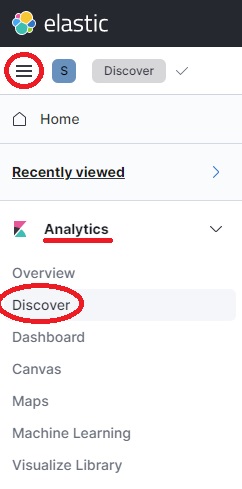
../../_images/discover.jpg

Once selected it will appear as shown in the image below:
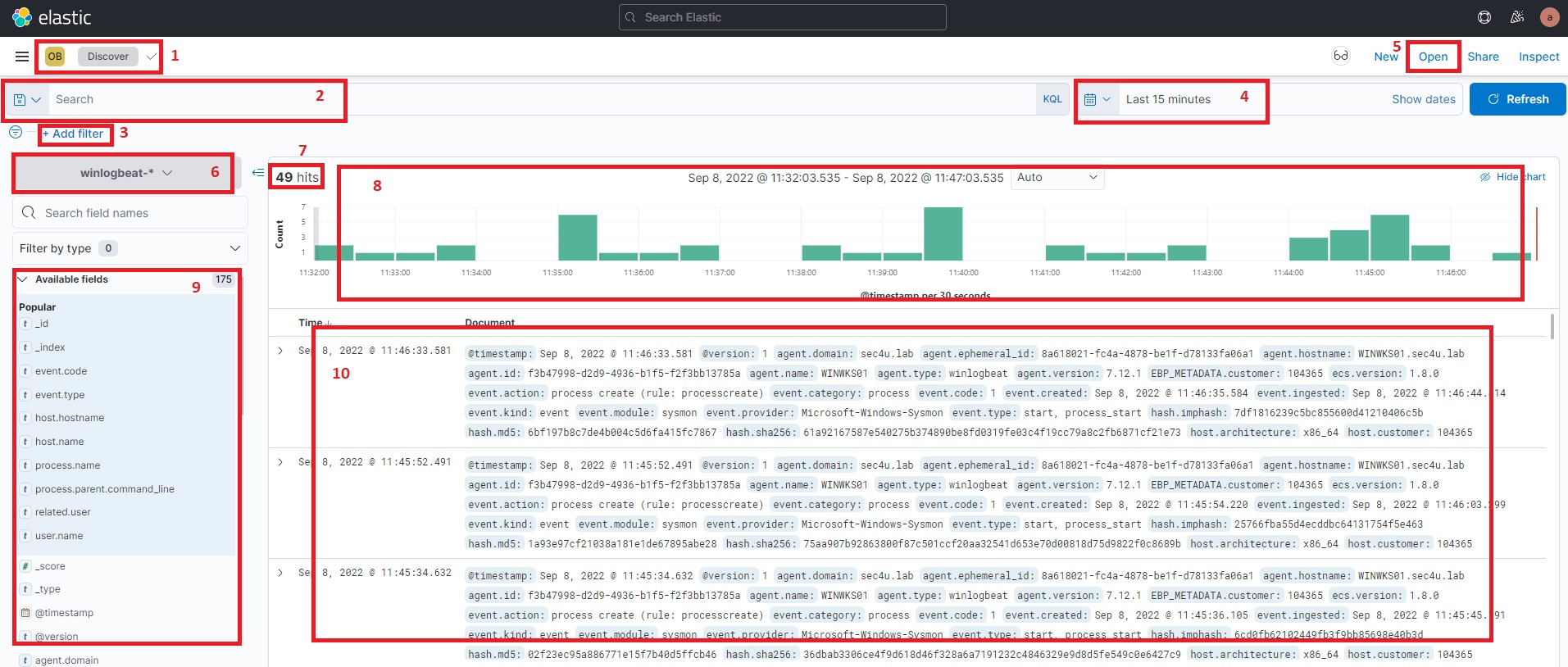
../../_images/discover-page-layout.jpg
  1. The name of your space and the section you are in

  2. The search bar through which you can query and filter data

  3. Additional filters that can be applied to the query or used individually to filter the data

  4. The filter to select the time range in which the results will be shown

  5. The ability to open previously saved search queries (these will be made available as examples)

  6. The Elastic index where the data to be displayed is contained

  7. The number of logs (also called documents) found within the chosen timerange and the query written

  8. The chart of previous documents sorted by time

  9. The fields of the documents found

  10. The complete list of documents, sorted from newest to oldest. You can expand each individual document and view all the fields within it.

Use and research

It’s very important to select the correct index (point 6 in the previous image) to view the data we’re interested in. In the case of an SOC ADS, only authentication events are present in Elastic, and they can be found within the index winlogbeat.

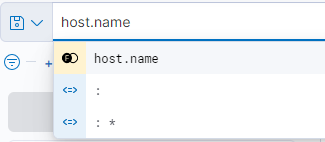
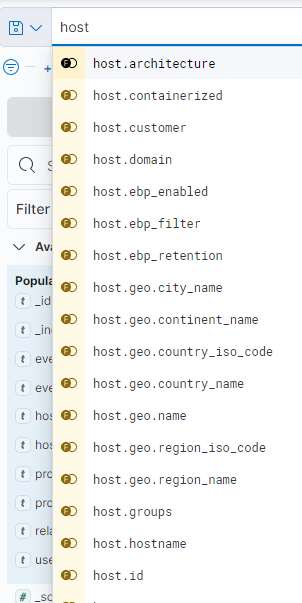
The search bar comes to our aid, suggesting the available fields and the values to choose from.
../../_images/search.png

Fig. 214 By typing, the fields are suggested to the user.

../../_images/search-colon.png

Fig. 215 The colon means equal to, the asterisk means any.

../../_images/search-and-or.png

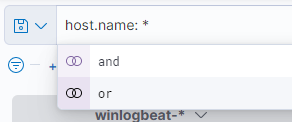
Fig. 216 Multiple fields can be correlated with AND and OR operations.

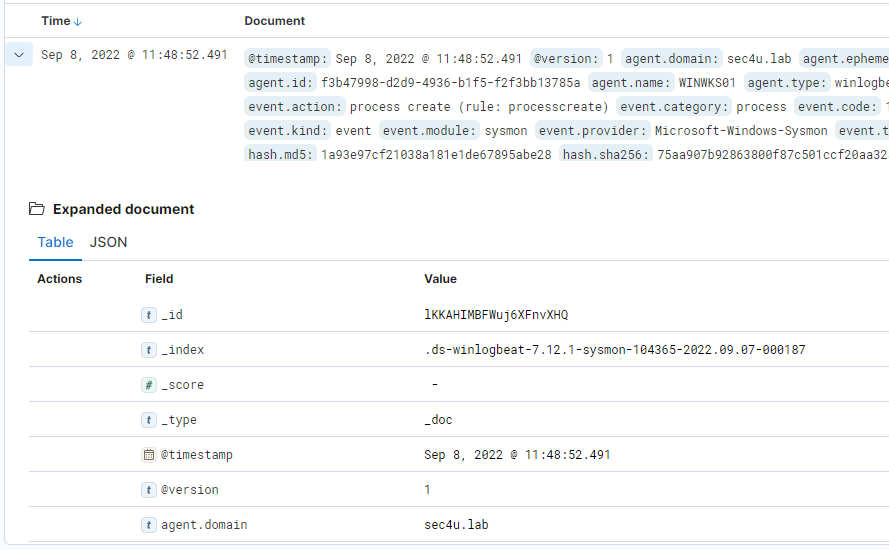
It is important to understand which are the most interesting fields and their possible values, in order to be able to use them later in queries.

To view the various available fields and their values, we can expand a document by clicking the arrow to the left of the date. See figure.
../../_images/fields.png

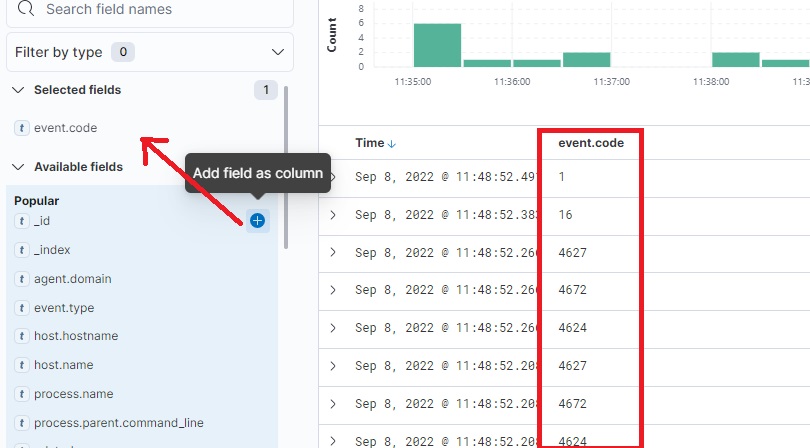
From the left-hand column of fields, we can click and select values, which will then be added as columns in the detailed view on the right. This allows us to quickly check the contents of each document without having to expand it.
../../_images/columns.jpg

Each column can be sorted and moved as needed.

Query examples

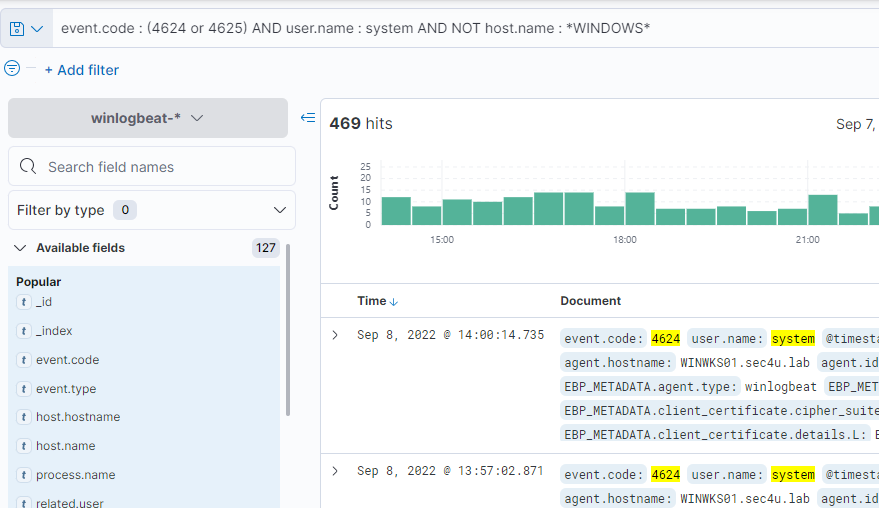
The figure below shows an example query. The searched values ​​will be highlighted in yellow in the results.
../../_images/queries.png
  • The AND, OR, and NOT parameters are not case-sensitive and can be written in either uppercase or lowercase.

  • There is a colon ( : ) between the field name and the value, but there is no need to insert spaces before and after.

  • The asterisk ( * ) can be added to both the field and the value and includes everything. For example, event.co* : 46*4 is a valid query.

Filter examples

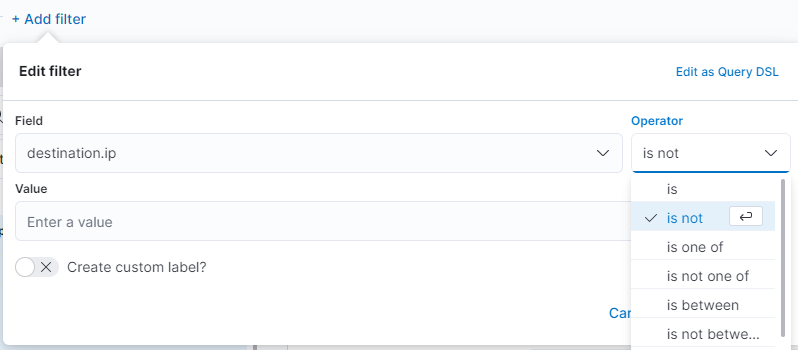
Adding a filter is possible by selecting Add filter below the search bar. The interface also helps us by guiding us through the selection of the field, operator, and value.
../../_images/create-filter.png

Fig. 217 Creating a filter manually

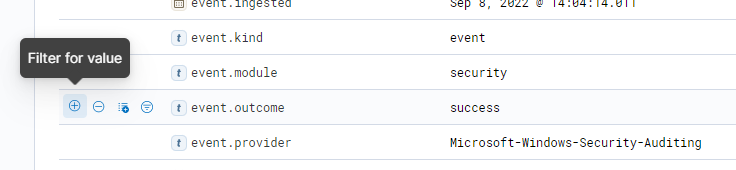
You can also filter values ​​directly from the document by expanding it and clicking the + or - next to a value. The filter will be applied and visible at the top.
../../_images/apply-filter.png

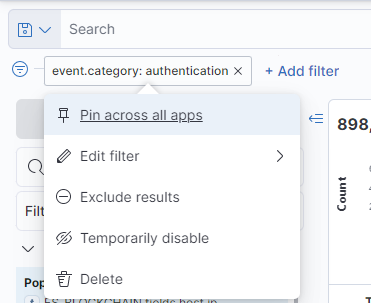
Once active, the filter remains visible at the top, under the search bar. From there you can edit it, reverse it, disable it, or remove it by simply clicking on it.
../../_images/manage-filter.png

Accessing saved queries

In the top bar, above the timerange, there is the Open button, which allows you to access some queries created by us previously.

../../_images/open-query.jpg

You are free to open them and use them as starting points to begin gaining some familiarity with the syntax.

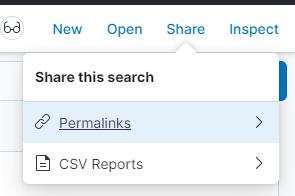
After writing a query (and optionally adding filters), you can export it as a link using the Share button. Adding that link to your favorites will allow you to access the query in the future.

../../_images/share-query.png